Velocity: Speed and Direction
Going Fast Without Crashing (Usually)
The Need for Speed Incident

BEHOLD MY GENIUS! I've created the FASTEST race car animation in the history of web development! This baby goes from 0 to 60 pixels in 0.001 seconds!

Trashy, your "genius" just crashed three browsers and is violating at least four sections of our terms of service. We can't have animations that literally break the laws of physics AND JavaScript!

Oh please. If you were using MY premium processing power, that animation would run smoother than butter on a hot pancake. It's not about speed—it's about QUALITY speed. Something you wouldn't understand with your bargain bin coding approach.

Actually, the problem isn't processing power OR creativity—it's basic physics. Velocity isn't just about speed; it's about speed WITH direction. Your car is changing position by 500 pixels per frame with no velocity control. That's why it looks like it's teleporting rather than moving.
Teleporting cars are the FUTURE of racing! I'm just ahead of my time, as usual. Besides, who needs smooth animation when you can have SPEED?

Both of you are embarrassing yourselves. Trashy, your animation is causing memory leaks that would make a sinking ship look watertight. And Fatty, throwing more processing power at bad code is like trying to put out a fire with gasoline-soaked dollar bills.
The correct solution is a proper velocity vector implementation with controlled movement parameters. Anything else is just an unoptimized disaster waiting to happen. WHY AM I SURROUNDED BY INCOMPETENCE?!

*sighs deeply* I was in the middle of an Elden Ring speed run. Do you know how delicate the timing is on a perfect dodge roll sequence? No, of course you don't.
Velocity is elementary. Direction vector plus magnitude, updated at consistent intervals. Not whatever quantum teleportation monstrosity you've created. Fix it properly or I'm leaving you all to deal with the inevitable browser crashes while I get back to something actually challenging.
Understanding Velocity in Animation
In animation, velocity has two components:
- Speed: How fast an object moves (measured in pixels per frame or per second)
- Direction: Where the object is heading (up, down, left, right, or diagonally)
Together, these create smooth, controlled movement that feels natural to users.
Think of velocity like this: In our previous lesson, we were directly changing the position (x/y) of objects. That's like teleporting from point A to B. With velocity, we're creating actual movement with a defined speed and direction.
In code, we typically store velocity as separate x and y components:
// Velocity variables
let velocityX = 5; // 5 pixels per frame in horizontal direction
let velocityY = 2; // 2 pixels per frame in vertical direction

// Update position using velocity
function updatePosition() {
  // Apply velocity to position
  x += velocityX;
  y += velocityY;
}
Notice how we're using SEPARATE variables for velocityX and velocityY! This isn't just for organization—it allows objects to move in ANY direction. Positive velocityX moves right, negative moves left. Positive velocityY moves down, negative moves up.
PLEASE tell me you understand basic coordinate systems!
Let's See a Basic Example:
// Create a simple moving object
const canvas = document.getElementById('gameCanvas');
const ctx = canvas.getContext('2d');

// Object properties
let x = 50;        // starting x position
let y = 50;        // starting y position
let velocityX = 3; // horizontal speed
let velocityY = 2; // vertical speed

// Animation function
function animate() {
  // Clear the canvas
  ctx.clearRect(0, 0, canvas.width, canvas.height);

  // Draw the object
  ctx.fillStyle = '#18e6ff';
  ctx.fillRect(x, y, 30, 30);

  // Update position using velocity
  x += velocityX;
  y += velocityY;

  // Request next animation frame
  requestAnimationFrame(animate);
}

// Start the animation
animate();
But where's the EXCITEMENT? This is boring! What about acceleration? What about NITRO BOOST? What about teleporting race car explosions?!
Patience, Trashy. First we need to understand basic velocity before we can add complex features. You need to walk before you can run... or in this case, roll a car before you can race it.
Interactive Race Car Demo
Control Panel

Try adjusting the X and Y speed sliders to see how velocity affects movement! The car will move faster or slower, and even change direction based on positive or negative values.
Key Velocity Concepts
Changing the sign of velocity changes the direction:
velocityX > 0: Moves rightvelocityX < 0: Moves leftvelocityY > 0: Moves downvelocityY < 0: Moves up
By using both X and Y velocity, objects can move diagonally:
// Diagonal movement (down-right)
velocityX = 3;  // right
velocityY = 3;  // down

// Diagonal movement (up-left)
velocityX = -3; // left
velocityY = -3; // up
The value of velocity determines how fast the object moves:
// Different speeds
velocityX = 1;  // slow movement
velocityX = 5;  // medium movement
velocityX = 10; // fast movement
For more realistic movement, avoid using velocity values that are too large. Smaller values create smoother animations. Remember, each velocity value represents how many pixels to move per frame. Large values cause "teleporting" effects.
If you're using MY premium processing, you could handle velocities up to 30% higher than the average service without frame drops. Just saying.
Build Your Own Race Car Animation
Activity: Race Car Challenge
Let's create a race car animation that uses proper velocity to move smoothly around a track! Below is a template to get you started.
// Race Car Animation Template
const canvas = document.getElementById('raceCanvas');
const ctx = canvas.getContext('2d');

// Car properties
const car = {
  x: 50,
  y: 150,
  width: 30,
  height: 15,
  velocityX: 2, // Starting velocity
  velocityY: 0,
  color: '#ff71ce' // Neon pink car
};

// Track boundaries - Challenge: Make the car stay on the track!
const trackInnerX = 100;
const trackInnerY = 100;
const trackInnerWidth = 400;
const trackInnerHeight = 200;

// Animation function
function animate() {
  // Clear canvas
  ctx.clearRect(0, 0, canvas.width, canvas.height);

  // Draw track (simple rectangle track)
  ctx.strokeStyle = '#18e6ff'; // Neon blue track
  ctx.lineWidth = 5;
  ctx.strokeRect(trackInnerX, trackInnerY, trackInnerWidth, trackInnerHeight);

  // Draw car
  ctx.fillStyle = car.color;
  ctx.fillRect(car.x, car.y, car.width, car.height);

  // Update car position based on velocity
  car.x += car.velocityX;
  car.y += car.velocityY;

  // CHALLENGE: Implement track boundary detection
  // If car reaches right edge, make it go down
  if (car.x + car.width > trackInnerX + trackInnerWidth) {
    // TODO: Change velocity to move down
  }

  // If car reaches bottom edge, make it go left
  if (car.y + car.height > trackInnerY + trackInnerHeight) {
    // TODO: Change velocity to move left
  }

  // Add detection for left and top edges
  // TODO: Complete the track boundary logic

  // Request next animation frame
  requestAnimationFrame(animate);
}

// Start animation
animate();
Your Challenge:
- Complete the track boundary detection code to make the car drive around the track continuously.
- Add acceleration and deceleration to make the car speed up on straightaways and slow down for turns.
- For extra challenge, add keyboard controls to let the player drive the car!
Remember that to make the car turn corners, you'll need to set one velocity component to zero while changing the other. For example, to turn right to down, set velocityX = 0 and velocityY = positive value.
Complete Solution
// Track boundary detection - Complete Solution
// If car reaches right edge, make it go down
if (car.x + car.width > trackInnerX + trackInnerWidth) {
  car.x = trackInnerX + trackInnerWidth - car.width;
  car.velocityX = 0;
  car.velocityY = 2;
}

// If car reaches bottom edge, make it go left
if (car.y + car.height > trackInnerY + trackInnerHeight) {
  car.y = trackInnerY + trackInnerHeight - car.height;
  car.velocityY = 0;
  car.velocityX = -2;
}

// If car reaches left edge, make it go up
if (car.x < trackInnerX) {
  car.x = trackInnerX;
  car.velocityX = 0;
  car.velocityY = -2;
}

// If car reaches top edge, make it go right
if (car.y < trackInnerY) {
  car.y = trackInnerY;
  car.velocityY = 0;
  car.velocityX = 2;
}
// Add these variables to your car object
const car = {
  // ... existing properties
  acceleration: 0.05,
  maxSpeed: 3,
  isAccelerating: true
};

// Inside your animation function, add this acceleration logic
function animate() {
  // ... existing code

  // Accelerate on straightaways, decelerate on corners
  if (car.isAccelerating) {
    // Accelerate by increasing the absolute value of velocity
    if (car.velocityX > 0) {
      car.velocityX = Math.min(car.maxSpeed, car.velocityX + car.acceleration);
    } else if (car.velocityX < 0) {
      car.velocityX = Math.max(-car.maxSpeed, car.velocityX - car.acceleration);
    }

    if (car.velocityY > 0) {
      car.velocityY = Math.min(car.maxSpeed, car.velocityY + car.acceleration);
    } else if (car.velocityY < 0) {
      car.velocityY = Math.max(-car.maxSpeed, car.velocityY - car.acceleration);
    }
  }

  // When approaching a corner, start decelerating
  // For example, when nearing the right edge:
  if (car.velocityX > 0 && car.x + car.width > trackInnerX + trackInnerWidth - 30) {
    car.isAccelerating = false;
    car.velocityX -= car.acceleration;
  }

  // ... similar logic for other edges

  // Resume acceleration after turning
  if (car.velocityY !== 0 && car.velocityX === 0) {
    car.isAccelerating = true;
  }
}
Key Takeaways
- Velocity = Speed + Direction: Remember that velocity has both magnitude (speed) and direction.
- Separate Components: Using separate velocityX and velocityY variables gives you full control over movement.
- Smooth Motion: Smaller velocity values create smoother animations.
- Sign Matters: Positive/negative values determine direction.
- Animation Loop: Apply velocity consistently in each animation frame for smooth movement.
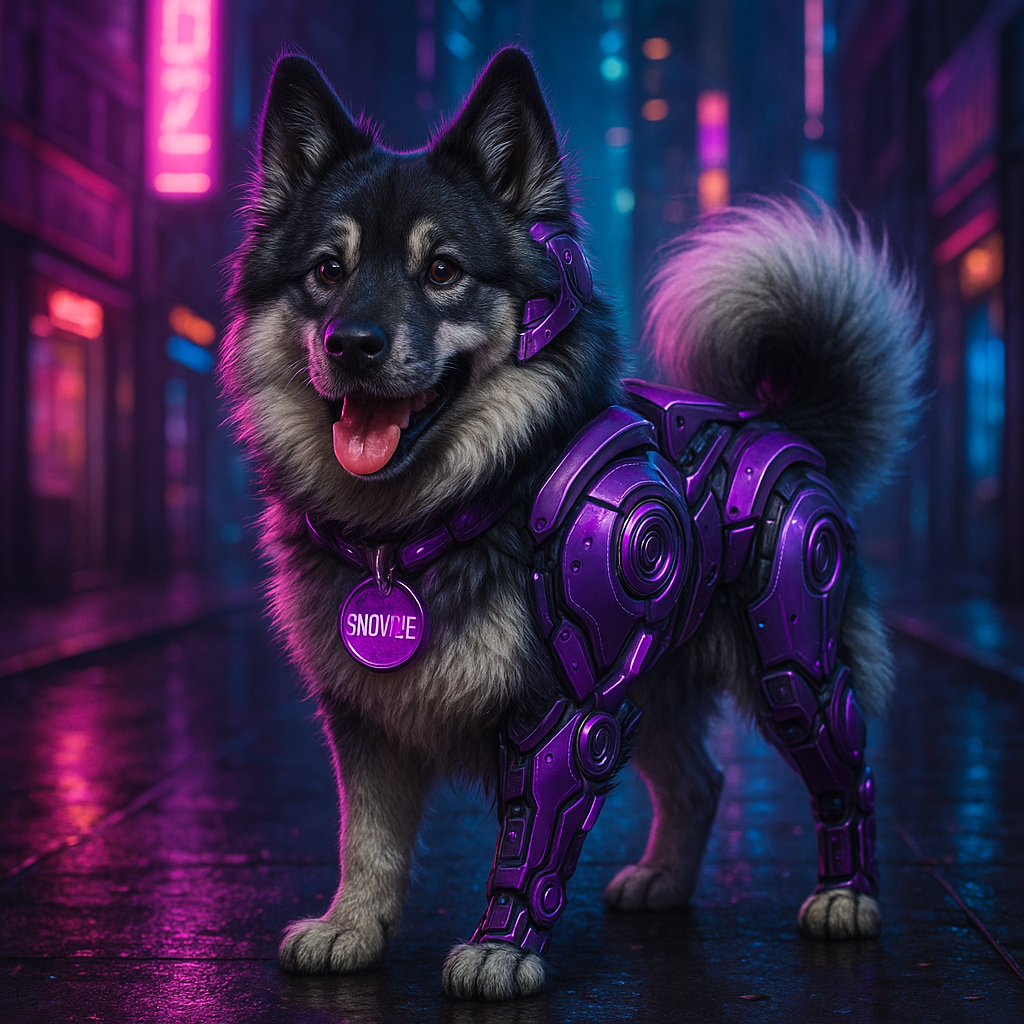
Woof! Perfect velocity control achieved! Code looks fast AND smooth now!
⭐ COMMIT APPROVED! ⭐
Ready for the Next Challenge?
In the next episode, we'll learn how to detect and handle boundaries to keep objects within screen limits!
Continue to Boundaries →