The Boundary Issue

For the LAST TIME, we need proper boundary detection on ALL our animations! Do you know what happens when objects escape the canvas? CHAOS! DESTRUCTION! The entire DOM could collapse!

Boundaries? BOUNDARIES?! Oh, please! That's exactly what's holding back your creativity, you paranoid CPU fossil! I INTENTIONALLY let my objects escape the canvas as a metaphor for breaking free from the constraints of conventional thinking!

Actually, Trashy, last time you "freed" your objects from the canvas, they ended up crashing the entire client presentation. The CEO's face turned the exact same shade of purple as Grumpy's error messages.

Look, I charge premium rates because I actually SOLVE problems. You want objects that respect boundaries? That'll be an extra thousand credits, please. My collision detection algorithm is so sophisticated it could dodge taxes better than a billionaire.

Um, guys? I actually tried to implement edge detection in my screen saver, but instead of bouncing off the walls, my shapes keep disappearing into... I think it's another dimension? They just never come back...

People! This is a legal nightmare waiting to happen! The Terms of Service clearly state that all animations must remain within their designated containers! Do you want to get sued by every browser on the planet? Because this is how you get sued by every browser on the planet!

*sighs deeply, pauses Elden Ring* For the love of... It's literally FOUR LINES OF CODE. If position > boundary, reverse direction. This is elementary school math. I could teach a calculator to do this. Now can someone please explain why I had to pause fighting this boss for something so trivial?
Fine! FINE! I'll add your precious boundaries! But I'm doing it under protest! And just to spite all of you, I'm going to create the most BOUNDARY-COMPLIANT screen saver in existence! It'll be so perfectly confined it'll make a prison cell look like the wild west! Watch and learn, amateurs!
Understanding Boundaries in Animation
When we create animations on a canvas, we need to make sure our objects don't run off the edge of the screen. This is called edge detection or boundary detection, and it's essential for creating professional animations and games.
Why boundaries matter:
- Prevents objects from disappearing off-screen
- Makes animations look intentional rather than buggy
- Enables bounce effects for more dynamic visuals
- Forms the foundation for collision detection in games
Step 1: Create a Basic Canvas Setup
First, let's create a canvas and get ready to draw our animation:
// Set up the canvas
const canvas = document.getElementById('myCanvas');
const ctx = canvas.getContext('2d');

// Create a movable object with position and velocity
let x = 50;         // Initial x position
let y = 50;         // Initial y position
let xSpeed = 5;     // Horizontal velocity
let ySpeed = 3;     // Vertical velocity
let ballSize = 20;  // Size of our ball
Let's set up a canvas where we can see our animation:
Step 2: Create a Basic Animation (Without Boundaries)
Now let's create a simple animation where a ball moves across the screen:
function update() {
  // Clear the canvas
  ctx.clearRect(0, 0, canvas.width, canvas.height);

  // Update the ball's position
  x += xSpeed;
  y += ySpeed;

  // Draw the ball
  ctx.beginPath();
  ctx.arc(x, y, ballSize, 0, Math.PI * 2);
  ctx.fillStyle = '#18e6ff';
  ctx.fill();
  ctx.closePath();

  // Call update again on the next frame
  requestAnimationFrame(update);
}

// Start the animation
update();
This animation has no boundaries, so the ball will keep moving and eventually disappear off the screen:
SEE?! It's gone! Vanished into the void! THIS is exactly what I'm talking about! For all we know, that animation object is now running wild in someone's banking app, causing havoc!
Step 3: Adding Edge Detection (Boundaries)
Now let's add code to detect when our ball hits the edges of the canvas:
function updateWithBoundaries() {
  // Clear the canvas
  ctx.clearRect(0, 0, canvas.width, canvas.height);

  // Update the ball's position
  x += xSpeed;
  y += ySpeed;

  // Check for horizontal boundaries (left and right edges)
  if (x + ballSize > canvas.width || x - ballSize < 0) {
    // Ball has hit the left or right edge, reverse horizontal direction
    xSpeed = -xSpeed;
  }

  // Check for vertical boundaries (top and bottom edges)
  if (y + ballSize > canvas.height || y - ballSize < 0) {
    // Ball has hit the top or bottom edge, reverse vertical direction
    ySpeed = -ySpeed;
  }

  // Draw the ball
  ctx.beginPath();
  ctx.arc(x, y, ballSize, 0, Math.PI * 2);
  ctx.fillStyle = '#18e6ff';
  ctx.fill();
  ctx.closePath();

  // Call update again on the next frame
  requestAnimationFrame(updateWithBoundaries);
}
Now the ball will bounce off the edges instead of disappearing:
Okay, fine. I admit it looks better when it bounces. But this is WAY too basic! Let me throw in some real improvements!
Step 4: Creating a Screen Saver Effect
Now let's make an actual screen saver with multiple bouncing objects and colors:
// Create multiple balls with different properties
const balls = [];
const ballCount = 10;
const colors = ['#18e6ff', '#b266ff', '#ff71ce', '#01ffaa', '#fffb96', '#ff9e64'];

// Create random balls
for (let i = 0; i < ballCount; i++) {
  balls.push({
    x: Math.random() * canvas.width,
    y: Math.random() * canvas.height,
    radius: 5 + Math.random() * 20,
    xSpeed: -4 + Math.random() * 8,
    ySpeed: -4 + Math.random() * 8,
    color: colors[Math.floor(Math.random() * colors.length)]
  });
}

function drawScreenSaver() {
  // Clear the canvas
  ctx.clearRect(0, 0, canvas.width, canvas.height);

  // Update and draw each ball
  balls.forEach(ball => {
    // Update position
    ball.x += ball.xSpeed;
    ball.y += ball.ySpeed;

    // Check boundaries and bounce
    if (ball.x + ball.radius > canvas.width || ball.x - ball.radius < 0) {
      ball.xSpeed = -ball.xSpeed;

      // Make sure the ball doesn't get stuck in the wall
      if (ball.x + ball.radius > canvas.width) {
        ball.x = canvas.width - ball.radius;
      }
      if (ball.x - ball.radius < 0) {
        ball.x = ball.radius;
      }
    }

    if (ball.y + ball.radius > canvas.height || ball.y - ball.radius < 0) {
      ball.ySpeed = -ball.ySpeed;

      // Make sure the ball doesn't get stuck in the wall
      if (ball.y + ball.radius > canvas.height) {
        ball.y = canvas.height - ball.radius;
      }
      if (ball.y - ball.radius < 0) {
        ball.y = ball.radius;
      }
    }

    // Draw the ball
    ctx.beginPath();
    ctx.arc(ball.x, ball.y, ball.radius, 0, Math.PI * 2);
    ctx.fillStyle = ball.color;
    ctx.fill();
    ctx.closePath();
  });

  // Repeat on the next frame
  requestAnimationFrame(drawScreenSaver);
}
Now we have a colorful screen saver with multiple bouncing balls:
Key Concepts to Remember
- Detect Boundaries: Check if your object's position plus its size exceeds the canvas dimensions.
- Reverse Direction: When a boundary is hit, multiply the velocity by -1 to reverse direction.
- Prevent Sticking: Sometimes objects can get "stuck" in boundaries, so it's good practice to reposition them outside of the boundary.
- Multiple Objects: The same principles apply when working with multiple animated objects.
See? Nothing to it. The beauty of edge detection is its simplicity. Everything we do in programming is just checking if something is greater than or less than something else, and then reacting appropriately. Now if you'll excuse me, I have a raid boss to defeat.
Not bad, but I think we should add a bit more explanation about the collision logic. Some of our users might not immediately get why we're reversing the velocity by multiplying by -1.
Understanding Velocity Reversal
When we multiply a velocity value by -1, we're flipping its direction:
- If xSpeed is 5 (moving right), then -xSpeed becomes -5 (moving left)
- If ySpeed is -3 (moving up), then -ySpeed becomes 3 (moving down)
This creates the "bounce" effect because the object starts moving in the opposite direction after hitting a boundary.
Of course, my premium boundary detection system would also include physics simulations, dynamic lighting effects, and realistic shadow casting. But I suppose this will do for the free version.
I... I think I get it now! My objects were disappearing because I was checking if they were exactly equal to the boundary, not if they exceeded it. That's why they kept vanishing into other dimensions!
Try It Yourself
Now it's your turn to experiment with the screen saver! Try these challenges:
- Change the ball count to create more or fewer balls
- Adjust the speed range to make the animation faster or slower
- Add different shapes instead of just circles
- Make the balls change color when they hit a wall
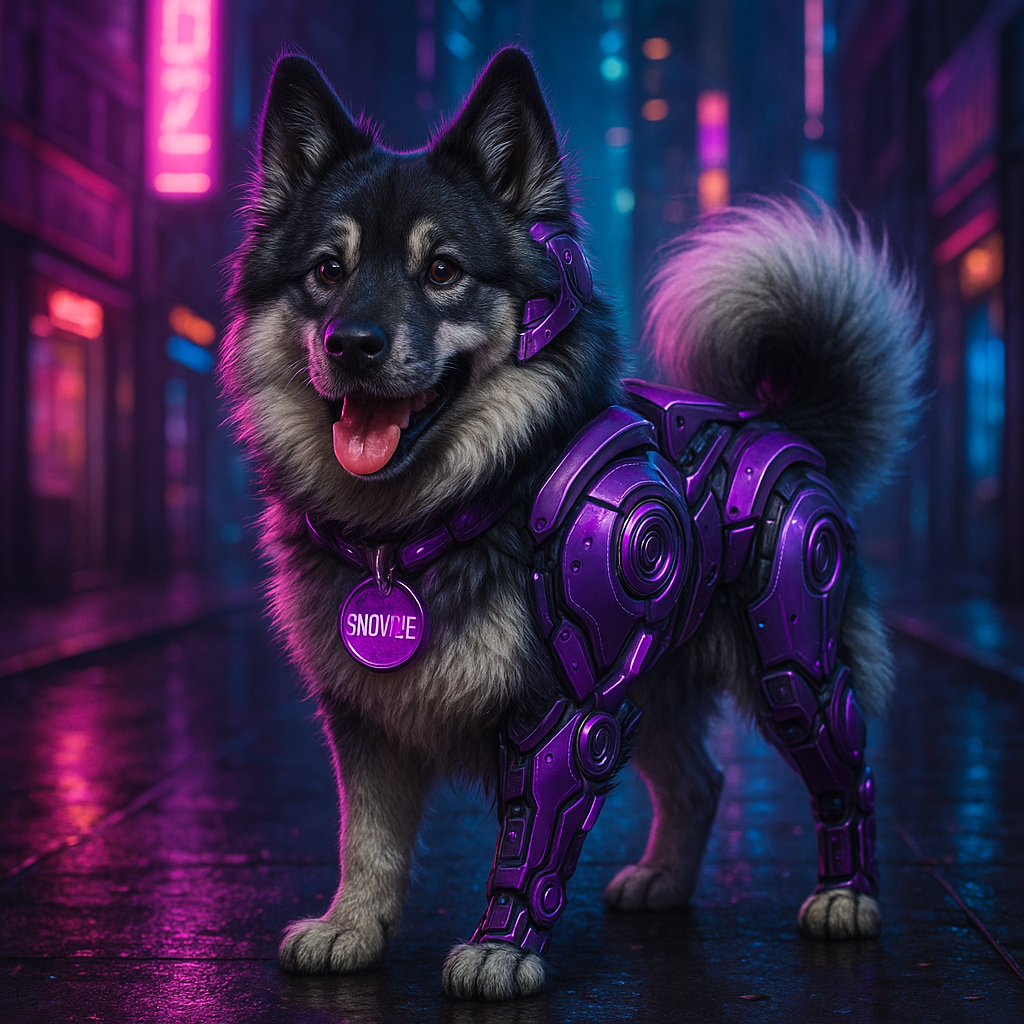
*happy barking* Woof woof! *wagging tail furiously*
Snowzie approves! Which means our boundaries are secure. FOR NOW. But don't get complacent! Security is a constant vigil! One undetected edge and we're doomed to animation chaos!