Clearing Canvas
In this episode, we'll learn how to clear the canvas using the clearRect() method to create animated drawings. This important technique allows us to update and redraw our canvas elements for creating dynamic, interactive experiences.
The Great Canvas Wipe

TRASHY: [dramatically waving arms at a canvas filled with random doodles] BEHOLD MY MASTERPIECE! I call it "Semicolons in the Void: A Developer's Nightmare"!

ALLY: That's... certainly something, Trashy. But we need to clear the canvas for today's lesson on clearRect().
TRASHY: [clutching canvas] CLEAR IT? Are you INSANE? This is digital ART! You can't erase genius! That's like deleting the Mona Lisa because you need disk space!

GRUMPY: It looks like a MEMORY DUMP after a CATASTROPHIC FAILURE! There's no STRUCTURE! No ORGANIZATION! Just CHAOS!

CODY: [timidly] Um, I actually kind of like it. It's... energetic?

FATTY: [examining with magnifying glass] I've seen premium clients pay thousands for worse. If we added an NFT certificate and called it "Blockchain Disruption #37," we could flip it for serious profit.
TRASHY: See? Fatty gets it! You don't just ERASE ART!

ASHLEY: Actually, we have to clear it. The legal department has identified at least three potentially copyrighted characters in whatever... that is. Plus, I'm pretty sure drawing anatomically impossible body parts violates our terms of service.
TRASHY: [defensive] That's not Mickey Mouse! It's... an original character called "Rickey Rodent"! Completely different!
GRUMPY: ENOUGH! We NEED to teach clearRect()! It's an ESSENTIAL method for ANIMATION! Without clearing the canvas, we'd just have a MESS of overlapping shapes!

GARBAGE: [appearing silently from nowhere] Save it first. Then clear.
GARBAGE: [everyone jumps, startled]
TRASHY: JEEZ! Do you materialize every time someone says the word "clear"?! You're like a debugging-themed horror movie villain!
ALLY: Garbage has a point. Let's save a snapshot of your... creation... and then demonstrate proper canvas clearing techniques.
CODY: [typing] I think I know how to do this. Something like context.clearRect(0, 0, canvas.width, canvas.height)?
ALLY: That's exactly right, Cody! The clearRect() method clears a rectangular area, making the pixels transparent.
TRASHY: [dramatic gasp] TRANSPARENT! Like my soul after you ERASED my MASTERPIECE!
GRUMPY: If we don't clear the canvas between animation frames, we'd just get VISUAL GARBAGE! Is that what you want, Trashy? GARBAGE?!
GARBAGE: [looking up] Someone called?
ASHLEY: Not everything is about you, Garbage. But since you're here, what's the most legally defensible way to implement canvas animation while avoiding performance issues?
GARBAGE: Clear. Draw. Repeat. RequestAnimationFrame, not setInterval. Double-buffering for complex scenes.
FATTY: Double-buffering is a premium feature that costs extra. As is smooth animation, high frame rates, and not having "BUDGET VERSION" watermarked across your drawing.
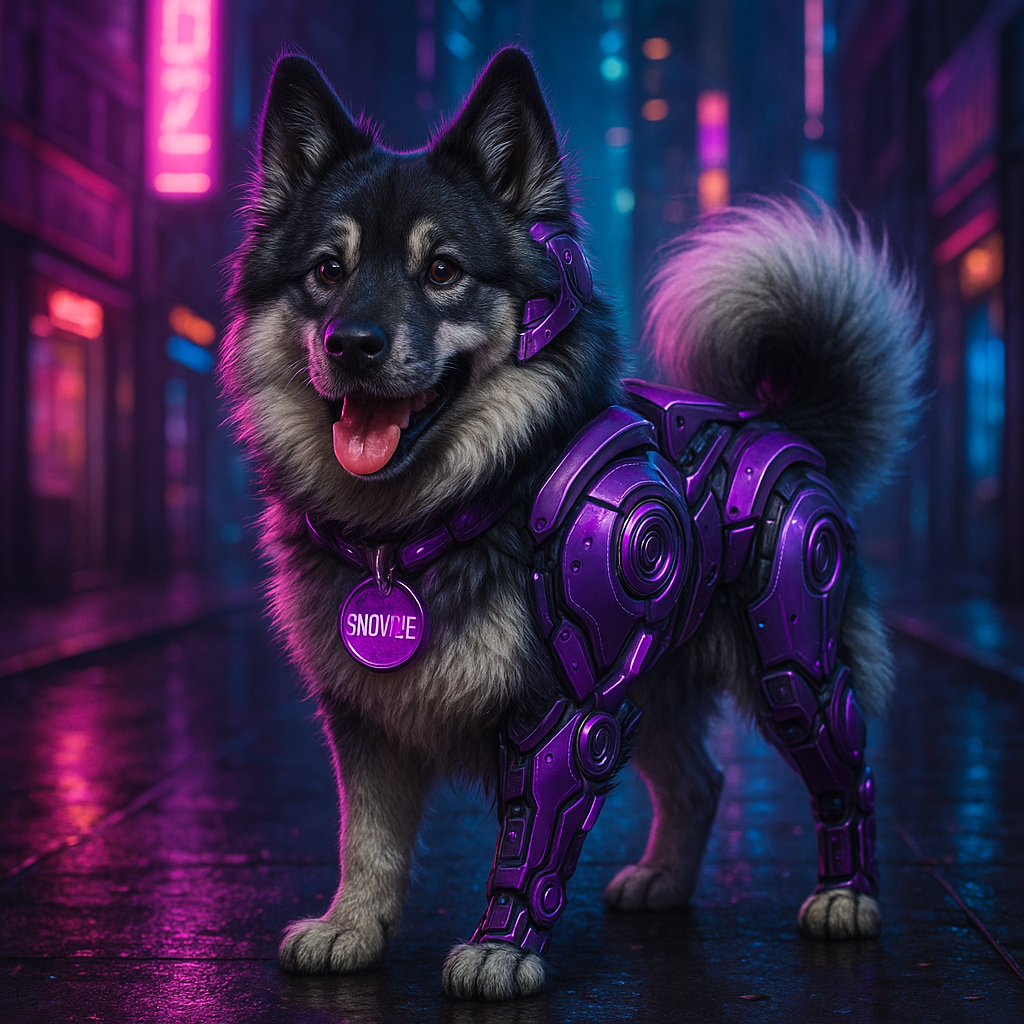
SNOWZIE: [enters room, looks at canvas, tilts head curiously] Woof!
ASHLEY: [translating] Snowzie says she prefers animation that tells a story, not just random movements. Also, she suggests saving Trashy's... artwork... to a separate file before clearing.
TRASHY: [suddenly emotional] The dog understands art! SHE GETS ME!
ALLY: Alright everyone, let's save Trashy's "art" with toDataURL(), clear the canvas with clearRect(), and get started with our animation lessons.
TRASHY: [to audience] And that's the lesson, kids: Always back up your masterpieces before someone commits the digital equivalent of art crime. But more importantly, learn clearRect() for animation - because even I have to admit that moving pictures are cooler than static ones. Just don't tell Ally I said that!
Understanding clearRect() Method
The clearRect() method is a fundamental canvas operation that erases pixels in a rectangular area, making them fully transparent. It's essential for animations where you need to redraw the canvas with updated content.
// Syntax for clearRect method
context.clearRect(x, y, width, height);

// Example: Clear the entire canvas
context.clearRect(0, 0, canvas.width, canvas.height);
Parameters:
x: The x-coordinate of the upper-left corner of the rectangle to cleary: The y-coordinate of the upper-left corner of the rectangle to clearwidth: The width of the rectangle to clearheight: The height of the rectangle to clear
Interactive Demo: clearRect() in Action
This demo shows how clearRect() works:
- "Draw Shapes" adds various shapes to the canvas
- "Clear All" uses
clearRect(0, 0, canvas.width, canvas.height)to erase everything - "Clear Rectangle" clears only a portion of the canvas, showing selective erasure
const canvas = document.getElementById('demoCanvas');
const ctx = canvas.getContext('2d');

// Draw multiple shapes function
function drawShapes() {
  // Clear any existing content first
  ctx.clearRect(0, 0, canvas.width, canvas.height);

  // Draw a red rectangle
  ctx.fillStyle = '#ff5555';
  ctx.fillRect(50, 50, 100, 100);

  // Draw a blue circle
  ctx.beginPath();
  ctx.fillStyle = '#5555ff';
  ctx.arc(300, 100, 50, 0, Math.PI * 2);
  ctx.fill();

  // Draw a green triangle
  ctx.beginPath();
  ctx.fillStyle = '#55ff55';
  ctx.moveTo(500, 50);
  ctx.lineTo(450, 150);
  ctx.lineTo(550, 150);
  ctx.closePath();
  ctx.fill();

  // Draw yellow text
  ctx.fillStyle = '#ffff55';
  ctx.font = '20px Arial';
  ctx.fillText('Canvas Drawing', 200, 200);
}

// Clear the entire canvas
function clearCanvas() {
  ctx.clearRect(0, 0, canvas.width, canvas.height);
}

// Clear just a portion of the canvas
function clearPortion() {
  // This clears a rectangle in the middle of the canvas
  ctx.clearRect(150, 50, 300, 150);
}
Using clearRect() for Animation
The real power of clearRect() emerges when creating animations. For smooth animations, we typically follow this pattern:
- Clear the entire canvas
- Update the position or properties of our objects
- Redraw everything in the new positions
- Repeat the process using
requestAnimationFrame()
let x = 0;
const ballRadius = 20;

function animate() {
  // Clear the entire canvas
  ctx.clearRect(0, 0, canvas.width, canvas.height);

  // Update position
  x += 2;
  if (x > canvas.width + ballRadius) {
    x = -ballRadius;
  }

  // Draw the ball at new position
  ctx.beginPath();
  ctx.fillStyle = '#18e6ff';
  ctx.arc(x, canvas.height / 2, ballRadius, 0, Math.PI * 2);
  ctx.fill();

  // Request next frame
  requestAnimationFrame(animate);
}

// Start the animation
animate();
let x = 0;
const ballRadius = 20;

function animateIncorrectly() {
  // NOT clearing the canvas - this causes trails

  // Update position
  x += 2;
  if (x > canvas.width + ballRadius) {
    x = -ballRadius;
  }

  // Draw the ball at new position WITHOUT clearing
  ctx.beginPath();
  ctx.fillStyle = '#18e6ff';
  ctx.arc(x, canvas.height / 2, ballRadius, 0, Math.PI * 2);
  ctx.fill();

  // Request next frame
  requestAnimationFrame(animateIncorrectly);
}
In the bad example, we don't clear the canvas before drawing the next frame. This creates a "trailing" effect where each frame remains visible, creating a smear across the canvas. While this might be a deliberate effect in some cases, it's generally not what you want for most animations.
Interactive Animation Builder
This interactive tool demonstrates how clearRect() is used in animations. Experiment with different settings:
- Start/stop the animation to see it in action
- Adjust the speed and size of the object
- Change the shape and color
- Toggle "Trail Effect" to see what happens when you don't clear the canvas between frames
Observe how clearRect() creates a clean canvas for each frame when trails are disabled, allowing smooth animation.
Creating the Connect-the-Dots Game
Now let's build a simple connect-the-dots game using our clearRect() knowledge. The game will:
- Display dots at random positions
- Allow the user to click them in sequence
- Draw lines connecting the dots
- Use animation to show the connections forming
- Allow clearing the canvas to start over
const canvas = document.getElementById('gameCanvas');
const ctx = canvas.getContext('2d');

// Game variables
let dots = [];
let clickedDots = [];
let animating = false;
let currentLine = {
  startX: 0,
  startY: 0,
  endX: 0,
  endY: 0,
  progress: 0
};

// Generate random dots
function generateDots(count) {
  dots = [];
  for (let i = 0; i < count; i++) {
    dots.push({
      x: Math.random() * (canvas.width - 100) + 50,
      y: Math.random() * (canvas.height - 100) + 50,
      radius: 15,
      index: i + 1,
      clicked: false
    });
  }
}

// Draw all dots
function drawDots() {
  dots.forEach(dot => {
    ctx.beginPath();
    ctx.arc(dot.x, dot.y, dot.radius, 0, Math.PI * 2);

    if (dot.clicked) {
      ctx.fillStyle = '#01ffaa';
    } else {
      ctx.fillStyle = '#b266ff';
    }

    ctx.fill();
    ctx.strokeStyle = 'white';
    ctx.lineWidth = 2;
    ctx.stroke();

    // Draw dot number
    ctx.fillStyle = 'white';
    ctx.font = 'bold 16px Arial';
    ctx.textAlign = 'center';
    ctx.textBaseline = 'middle';
    ctx.fillText(dot.index.toString(), dot.x, dot.y);
  });
}

// Draw lines between clicked dots
function drawLines() {
  if (clickedDots.length < 2) return;

  ctx.beginPath();
  ctx.moveTo(clickedDots[0].x, clickedDots[0].y);

  for (let i = 1; i < clickedDots.length; i++) {
    ctx.lineTo(clickedDots[i].x, clickedDots[i].y);
  }

  ctx.strokeStyle = '#18e6ff';
  ctx.lineWidth = 3;
  ctx.stroke();
}

// Animate line drawing
function animateLine() {
  if (!animating) return;

  // Clear only what we need to redraw
  ctx.clearRect(0, 0, canvas.width, canvas.height);

  // Draw completed lines
  if (clickedDots.length >= 2) {
    ctx.beginPath();
    ctx.moveTo(clickedDots[0].x, clickedDots[0].y);

    for (let i = 1; i < clickedDots.length - 1; i++) {
      ctx.lineTo(clickedDots[i].x, clickedDots[i].y);
    }

    ctx.strokeStyle = '#18e6ff';
    ctx.lineWidth = 3;
    ctx.stroke();
  }

  // Draw current line animation
  if (clickedDots.length > 0 && currentLine.progress <= 1) {
    const startDot = clickedDots[clickedDots.length - 2] || clickedDots[0];
    const endDot = clickedDots[clickedDots.length - 1];

    ctx.beginPath();
    ctx.moveTo(startDot.x, startDot.y);

    // Calculate current point along the path
    const currentX = startDot.x + (endDot.x - startDot.x) * currentLine.progress;
    const currentY = startDot.y + (endDot.y - startDot.y) * currentLine.progress;

    ctx.lineTo(currentX, currentY);
    ctx.strokeStyle = '#18e6ff';
    ctx.lineWidth = 3;
    ctx.stroke();

    // Increase progress
    currentLine.progress += 0.05;

    if (currentLine.progress > 1) {
      currentLine.progress = 0;
      animating = false;
    }
  }

  // Draw all dots
  drawDots();

  if (animating) {
    requestAnimationFrame(animateLine);
  }
}

// Handle canvas clicks
canvas.addEventListener('click', function(event) {
  const rect = canvas.getBoundingClientRect();
  const x = event.clientX - rect.left;
  const y = event.clientY - rect.top;

  for (let dot of dots) {
    const dx = dot.x - x;
    const dy = dot.y - y;
    const distance = Math.sqrt(dx*dx + dy*dy);

    if (distance <= dot.radius && !dot.clicked) {
      dot.clicked = true;
      clickedDots.push(dot);

      if (clickedDots.length >= 2) {
        animating = true;
        currentLine.progress = 0;
        animateLine();
      } else {
        // First dot clicked, just redraw
        ctx.clearRect(0, 0, canvas.width, canvas.height);
        drawDots();
      }

      break;
    }
  }
});

// Reset game button
document.getElementById('resetGame').addEventListener('click', function() {
  // Clear the entire canvas
  ctx.clearRect(0, 0, canvas.width, canvas.height);

  // Reset game state
  clickedDots = [];
  animating = false;
  currentLine.progress = 0;

  // Reset dots
  dots.forEach(dot => {
    dot.clicked = false;
  });

  // Redraw dots
  drawDots();
});
Try It: Connect-the-Dots Game
Instructions:
- Click "New Dots" to generate a random dot pattern
- Click the dots in numerical order (1, 2, 3...)
- Watch as animated lines connect the dots
- Click "Clear Canvas" to start over
This game demonstrates how clearRect() enables smooth animations by clearing the canvas before each frame, creating the illusion of moving lines.
Advanced Techniques with clearRect()
Selective Clearing
Instead of clearing the entire canvas, you can selectively clear specific areas:
// Clear only the region where an object was
ctx.clearRect(
  object.x - 5,
  object.y - 5,
  object.width + 10,
  object.height + 10
);
This can be more efficient for complex scenes where only small parts change.
Double Buffering
For complex animations, double buffering prevents flickering:
// Create an offscreen canvas
const offscreenCanvas = document.createElement('canvas');
offscreenCanvas.width = canvas.width;
offscreenCanvas.height = canvas.height;
const offscreenCtx = offscreenCanvas.getContext('2d');

// Draw to offscreen canvas first
offscreenCtx.clearRect(0, 0, canvas.width, canvas.height);
// Draw all objects...

// Then copy to visible canvas in one operation
ctx.clearRect(0, 0, canvas.width, canvas.height);
ctx.drawImage(offscreenCanvas, 0, 0);
Creating Trail Effects
For trails, use transparent rectangles instead of fully clearing:
// Add a semi-transparent overlay instead of clearing
ctx.fillStyle = 'rgba(0, 0, 0, 0.2)'; // Fading effect
ctx.fillRect(0, 0, canvas.width, canvas.height);
// Draw new position...
This creates a fading trail effect as older positions become increasingly transparent.
Mask-Based Clearing
Create complex clearing patterns using compositing:
// Save current drawing state
ctx.save();

// Set compositing operation
ctx.globalCompositeOperation = 'destination-out';

// Draw a shape to clear (becomes transparent)
ctx.beginPath();
ctx.arc(100, 100, 50, 0, Math.PI * 2);
ctx.fill();

// Restore drawing state
ctx.restore();
This creates complex "eraser" shapes beyond simple rectangles.
Common Mistakes with clearRect()
function animate() {
  // Missing clearRect here!

  ball.x += 5;
  drawBall(ball.x, ball.y);

  requestAnimationFrame(animate);
}
Result: Creates trailing effects where old frames remain visible. Fix by adding ctx.clearRect(0, 0, canvas.width, canvas.height); at the start of the animation function.
// This doesn't clear the entire canvas
ctx.clearRect(0, 0, 500, 300);

// Canvas is actually 600x400 pixels
Result: Parts of the canvas remain uncleared. Fix by using the canvas dimensions: ctx.clearRect(0, 0, canvas.width, canvas.height);
function drawScene() {
  // Clearing here...
  ctx.clearRect(0, 0, canvas.width, canvas.height);

  drawBackground();
  drawCharacter();
  drawEffects(); // But this function also clears the canvas!
}

function drawEffects() {
  ctx.clearRect(0, 0, canvas.width, canvas.height); // Oops!
  // Draw effects...
}
Result: Background and character disappear because they're cleared by the effects function. Fix by organizing your code to clear once at the beginning of the main animation loop.
Activity: Create Your Own Animated Drawing
Now it's your turn to create an animated drawing using clearRect()! Here's your challenge:
- Create a simple animation that uses
clearRect()to update between frames - Implement at least two moving objects that interact in some way
- Add user controls to change speed, colors, or other properties
- Include a button to clear the canvas and reset the animation
Start with this template:
const canvas = document.getElementById('myCanvas');
const ctx = canvas.getContext('2d');

// Animation variables
let animationId;
let object1 = {
  x: 50,
  y: 100,
  radius: 20,
  color: '#18e6ff',
  speedX: 2,
  speedY: 1
};

let object2 = {
  x: 200,
  y: 150,
  radius: 30,
  color: '#ff71ce',
  speedX: -1,
  speedY: 2
};

function animate() {
  // Clear the canvas
  ctx.clearRect(0, 0, canvas.width, canvas.height);

  // Update positions
  updateObject(object1);
  updateObject(object2);

  // Check for interactions
  checkInteraction();

  // Draw objects
  drawObject(object1);
  drawObject(object2);

  // Continue animation
  animationId = requestAnimationFrame(animate);
}

function updateObject(obj) {
  // Update position
  obj.x += obj.speedX;
  obj.y += obj.speedY;

  // Bounce off walls
  if (obj.x < obj.radius || obj.x > canvas.width - obj.radius) {
    obj.speedX = -obj.speedX;
  }

  if (obj.y < obj.radius || obj.y > canvas.height - obj.radius) {
    obj.speedY = -obj.speedY;
  }
}

function drawObject(obj) {
  ctx.beginPath();
  ctx.arc(obj.x, obj.y, obj.radius, 0, Math.PI * 2);
  ctx.fillStyle = obj.color;
  ctx.fill();
}

function checkInteraction() {
  // Calculate distance between objects
  const dx = object1.x - object2.x;
  const dy = object1.y - object2.y;
  const distance = Math.sqrt(dx*dx + dy*dy);

  // If objects collide
  if (distance < object1.radius + object2.radius) {
    // Swap colors for visual effect
    const tempColor = object1.color;
    object1.color = object2.color;
    object2.color = tempColor;

    // Change directions
    object1.speedX = -object1.speedX;
    object1.speedY = -object1.speedY;
    object2.speedX = -object2.speedX;
    object2.speedY = -object2.speedY;
  }
}

// Start and stop controls
function startAnimation() {
  if (!animationId) {
    animate();
  }
}

function stopAnimation() {
  if (animationId) {
    cancelAnimationFrame(animationId);
    animationId = null;
  }
}

function resetAnimation() {
  stopAnimation();
  object1 = {
    x: 50,
    y: 100,
    radius: 20,
    color: '#18e6ff',
    speedX: 2,
    speedY: 1
  };

  object2 = {
    x: 200,
    y: 150,
    radius: 30,
    color: '#ff71ce',
    speedX: -1,
    speedY: 2
  };

  // Clear canvas
  ctx.clearRect(0, 0, canvas.width, canvas.height);
}
clearRect() Checklist
- Use
clearRect(0, 0, canvas.width, canvas.height)to clear the entire canvas - Clear the canvas at the beginning of each animation frame
- For performance, clear only the necessary areas if possible
- Consider using transparent rectangles for trail effects
- Use
requestAnimationFrame()instead ofsetInterval()for smoother animations - Remember that
clearRect()makes pixels transparent, not white - Be careful with nested functions that might clear the canvas unexpectedly
- For complex scenes, consider double buffering to prevent flickering
Summary
In this episode, we've learned:
- How to use
clearRect()to erase content from a canvas - Why clearing the canvas is essential for smooth animations
- Different clearing techniques for various effects
- How to implement animation loops with proper clearing
- How to create interactive applications like our connect-the-dots game
- Common mistakes to avoid when using
clearRect()
In the next episode, we'll explore the final project for this chapter - building a complete drawing application that combines all the canvas techniques we've learned!